2026 is the year of agents doing the task for us rather than just guiding us to. We saw the rise of OpenClaw and now we have Hermes agent. It is an open-source, self-improving AI agent built by Nous Research. It has a built-in learning loop that creates skills from experience, improves them during use, nudges itself to persist knowledge, and builds a deepening model of who you are across sessions.
In this tutorial, you will deploy Hermes on a DigitalOcean Droplet, connect it to Telegram, and extend it with a custom skill. As a practical example, you will see how to build a grocery tracking agent that monitors daily consumption, alerts you when stock is low, and places orders automatically through a grocery delivery service.
The grocery example uses Swiggy Instamart, which is available in India. But the approach works with any MCP-compatible service, such as a local grocery API, a task manager, a calendar, or a home automation system. The pattern is the same no matter what you connect.
Key takeaways
- You host Hermes on a DigitalOcean Droplet (Ubuntu 24.04, at least 2 vCPUs and 4 GB RAM), install with the official script, and run
hermes setupfor your LLM provider. - The Telegram bot uses
hermes gateway setupand a persistent gateway service so Hermes stays reachable after you close SSH. - Skills are Markdown files under
~/.hermes/skills/. MCP servers go in Hermes config and expose tools such as grocery search and cart actions. - HTTP MCP with OAuth on a headless server uses the URL Hermes prints plus an SSH tunnel from your laptop browser to the Droplet loopback port.
- The grocery walkthrough uses Swiggy Instamart where available; you swap in another MCP URL for your region or stack.
Prerequisites
Before you begin, you will need:
- A DigitalOcean account. If you do not have one, sign up here.
- A DigitalOcean Droplet running Ubuntu 24.04 with at least 2 vCPUs and 4 GB RAM.
- A Telegram account.
- API key from an LLM provider. Hermes supports Anthropic, OpenAI, OpenRouter, and others.
What are we building
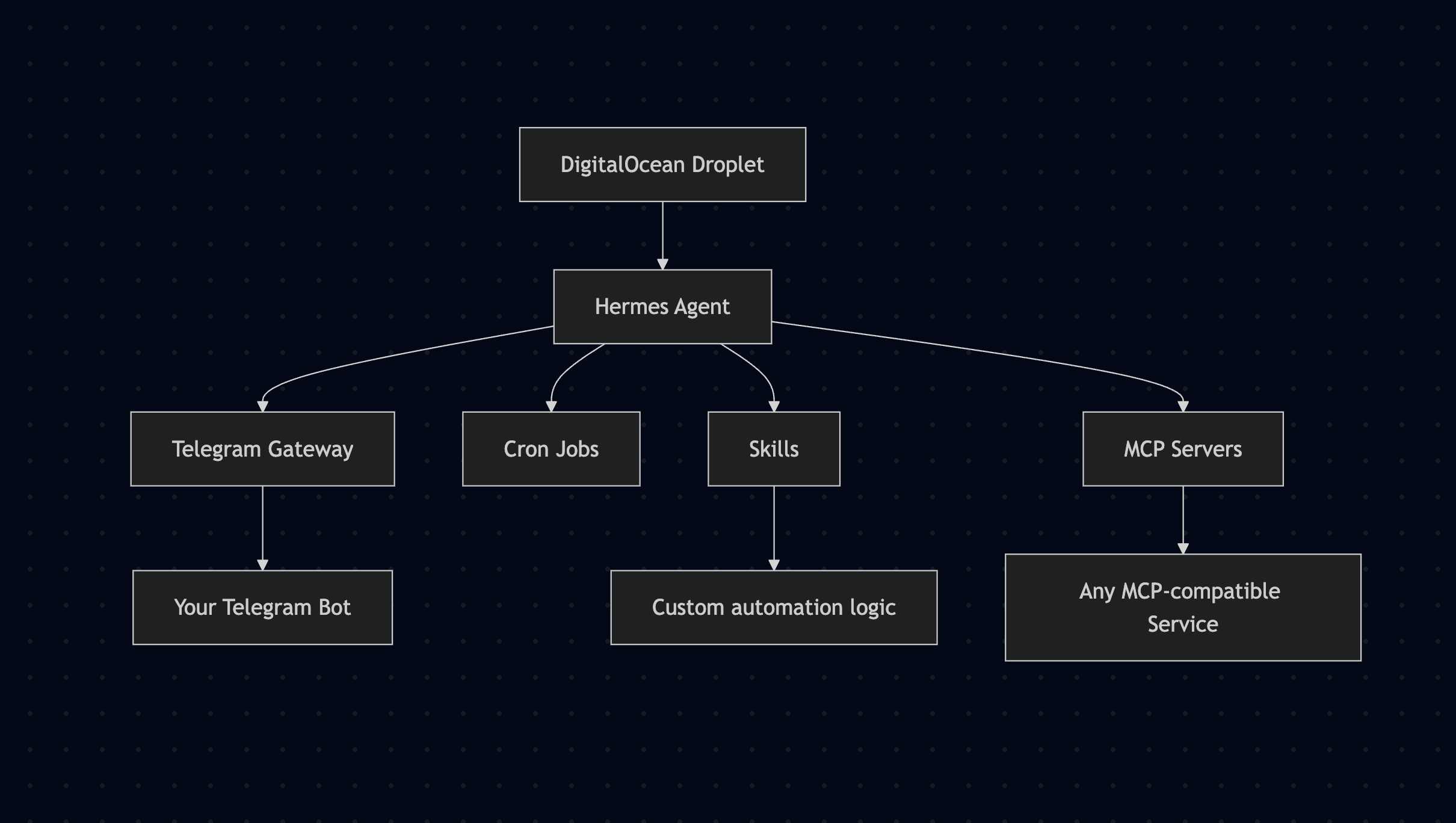
Hermes is model-agnostic and platform-agnostic. It can connect to any tool that supports the Model Context Protocol (MCP), and it can send and receive messages on Telegram, WhatsApp, Discord, and Slack. You can find more information on their documentation.
The architecture in this tutorial looks like this:
Let’s get started building:
Step 1 - Creating the droplet
Sign in to your DigitalOcean account and create a new Droplet.
On the creation page, select:
- Region: The one closest to you
- Image: Ubuntu 24.04 LTS
- Plan: Basic, with at least 2 vCPUs and 4 GB RAM (the
s-2vcpu-4gbsize) - Authentication: SSH Key
If you need help adding an SSH key, follow the DigitalOcean SSH key guide.
Once the Droplet is created, SSH into it:
ssh root@YOUR_DROPLET_IP
Update the system before installing anything:
apt update && apt upgrade -y
Step 2 - Installing Hermes Agent
Hermes provides an install script that handles all dependencies including Python, uv, and the hermes binary itself.
curl -fsSL https://raw.githubusercontent.com/NousResearch/hermes-agent/main/scripts/install.sh | bash
Once it finishes, reload your shell so the hermes command is available:
source ~/.bashrc
Run the setup wizard:
hermes setup
The wizard will ask you to choose an LLM provider and enter your API key. Select your provider, paste your key, and Hermes will save it to ~/.hermes/.env.
Verify the installation:
hermes --version
Step 3 - Connecting Hermes to Telegram
Hermes connects to Telegram through a bot. Run the gateway setup:
hermes gateway setup
When it asks which platform to use, select Telegram. Hermes will walk you through creating a bot with Telegram’s BotFather. Follow the steps in your terminal.
Once setup is complete, start the gateway:
hermes gateway start
To keep it running after you disconnect from the Droplet, enable it as a system service:
systemctl enable hermes-gateway
systemctl start hermes-gateway
Open Telegram, find the bot you just created, and send it a message like “hello.” If it responds, Hermes is connected and ready.
You can now talk to Hermes from anywhere on your phone. Ask it to check the weather, set a reminder, search the web, or run a command on your Droplet. It handles all of this out of the box.
Step 4 - Understanding Skills and MCP Servers
Before building the automation example, let’s understand two core Hermes concepts:
Skills - These are Markdown files that teach Hermes how to handle specific tasks. You write a skill file describing what the task is, what triggers it, and what steps to follow. Hermes reads all skill files in ~/.hermes/skills/ at startup and uses them to handle relevant requests.
MCP Servers - It gives Hermes access to external services. MCP (Model Context Protocol) is an open standard that lets AI agents communicate with APIs in a structured way. If a service publishes an MCP server, Hermes can search its products, manage carts, read calendars, create tasks, and more. You add MCP servers to your Hermes config and Hermes uses them automatically when relevant.
Together, skills and MCP servers let you build automations that are specific to your life and the tools you use.
Step 5 - Building a Real-World Automation: Grocery Tracking
Personally, I am very bad at keeping a tab of groceries and often find myself out of essential stock just when I am about to cook. So I wanted to automate this process for me. I eat similar food everyday and also measure my calories. I used all of this information to automate grocery shopping for me.
The goal of Hermes was to track my daily grocery consumption, alert me on Telegram when something is running low, and place an order through a grocery delivery service when I say yes.
This example uses the Swiggy Instamart MCP server, which is available in India. If you are in a different country, you can swap it out for any MCP-compatible grocery or delivery service. The skill logic stays exactly the same.
Creating the Skill File
Create a directory for the skill:
mkdir -p ~/.hermes/skills/grocery
Create the skill file:
nano ~/.hermes/skills/grocery/grocery_tracker.md
Paste the following and edit the groceries: section to match your actual diet and quantities:
# Grocery Auto-Order Skill

## My Daily Grocery List

groceries:
  - name: "Milk"
    unit: "ml"
    daily_consumption: 500
    reorder_quantity: 2000
    alert_threshold_days: 3
    search_query: "fresh milk 1 litre"

  - name: "Eggs"
    unit: "pieces"
    daily_consumption: 2
    reorder_quantity: 12
    alert_threshold_days: 3
    search_query: "eggs 12 pack"

  - name: "Oats"
    unit: "gm"
    daily_consumption: 60
    reorder_quantity: 1000
    alert_threshold_days: 7
    search_query: "rolled oats 1kg"

  # Add your own items following the same format

## Instructions for Hermes

### Daily Check
Read ~/.hermes/grocery_inventory.json. Subtract each item's
daily_consumption from its current quantity. For any item where
quantity / daily_consumption is less than or equal to
alert_threshold_days, send a Telegram alert listing the low
items and ask if the user wants to place an order.

### On YES
Search each low item using its search_query at the user's saved
delivery address. Add reorder_quantity of each to cart. Send a
cart summary via Telegram with prices and total. Wait for CONFIRM.

### On CONFIRM
Place the order. Update grocery_inventory.json with the restocked
quantities. Send a delivery confirmation message.
Save with Ctrl+O, then Enter, then exit with Ctrl+X.
Creating the Inventory File
The inventory file tracks how much of each item you have at home right now.
nano ~/.hermes/grocery_inventory.json
{
  "last_updated": "2026-05-07",
  "delivery_address": "YOUR FULL ADDRESS HERE",
  "snooze_until": null,
  "items": {
    "Milk": { "quantity": 1000, "unit": "ml" },
    "Eggs": { "quantity": 6, "unit": "pieces" },
    "Oats": { "quantity": 300, "unit": "gm" }
  }
}
Replace the quantities with what you actually have at home. Save and exit.
Connecting an MCP Server
Add the grocery service MCP to your Hermes config:
hermes config edit
Scroll to the bottom of the file and add your MCP server. For Swiggy Instamart:
mcp_servers:
  swiggy-instamart:
    url: "https://mcp.swiggy.com/im"
    auth: oauth
For any other MCP-compatible service, replace the name and URL with the values from that service’s documentation.
Save and exit, then verify it appears:
hermes mcp list
Step 6- Authenticating with Your MCP Server
Most MCP servers require OAuth authentication. Because your Droplet is headless, the OAuth callback needs to reach your browser through an SSH tunnel.
Run the login command on your Droplet:
hermes mcp login swiggy-instamart
Hermes will print a URL containing a port number in the redirect URI, like http://127.0.0.1:45123/callback. Note that port number.
On your local machine, open a new terminal and run the SSH tunnel using that port:
ssh -i ~/.ssh/id_ed25519 -L 45123:127.0.0.1:45123 root@YOUR_DROPLET_IP
Keep that terminal open, then immediately open the URL from your Droplet in your browser and complete the login. You have about 30 seconds before the token expires, so have both terminals ready before you start.
When authentication succeeds, your Droplet terminal will show:
✓ Authenticated — tools available
Telling Hermes Your Current Stock
Start Hermes and initialize the inventory:
hermes
Type:
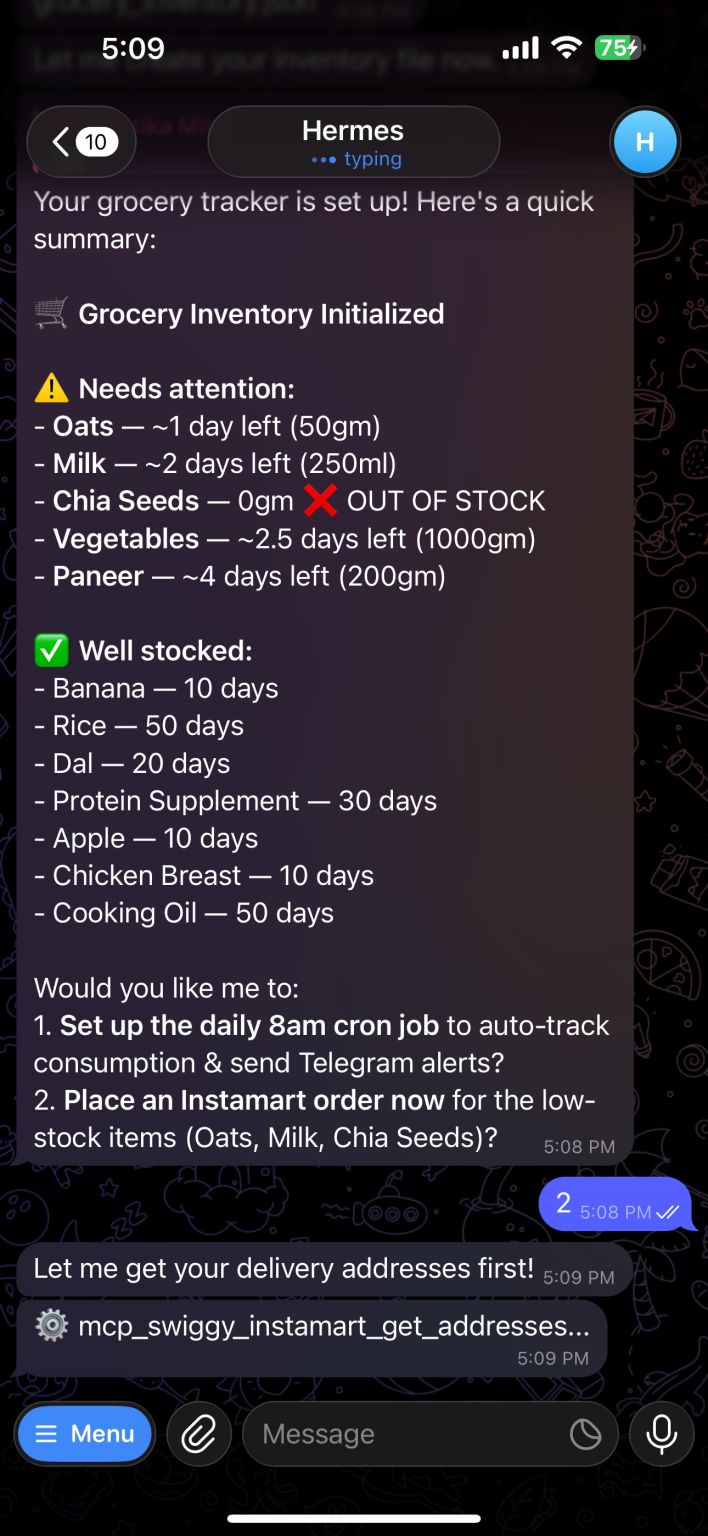
Set up my grocery tracker. Ask me for current stock levels for each item in the grocery_tracker skill.
Hermes will ask about each item one by one. Answer with what you currently have at home and it will update grocery_inventory.json automatically. Once you have given the update, you will receive a message similar to this:
Setting up the daily alert
Still inside Hermes, set up the cron job:
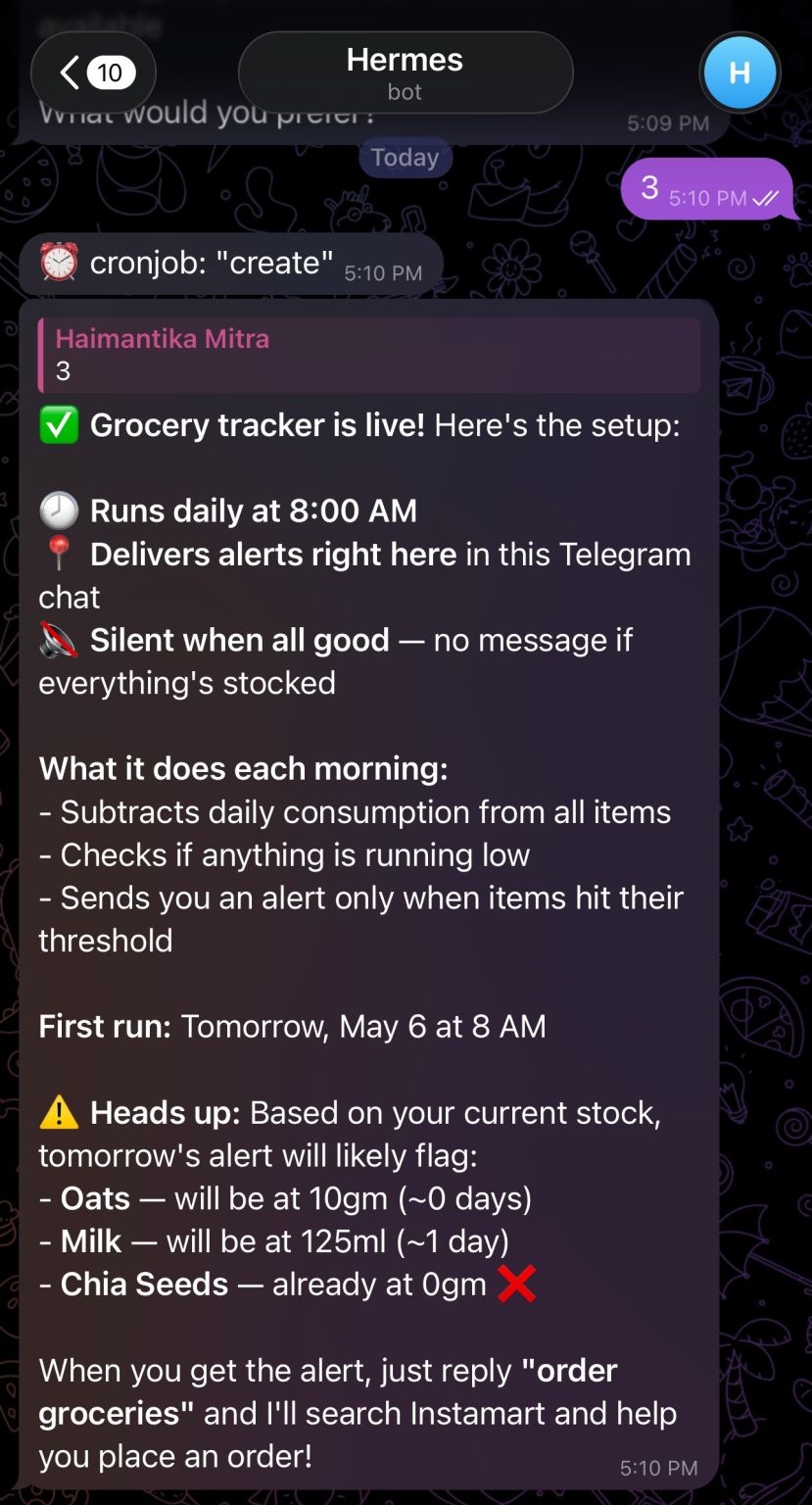
Add a daily cron at 8am: check my grocery inventory using the grocery_tracker skill, subtract daily consumption, and send me a Telegram message if anything is running low.
Hermes will schedule this and confirm. From now on, every morning it checks your stock and messages you on Telegram if you need to reorder. This is how it looks:
Step 7 - Testing the Full Flow
Send a test message to your Telegram bot:
Check my groceries and tell me what's running low.
You should receive a Telegram message like this:
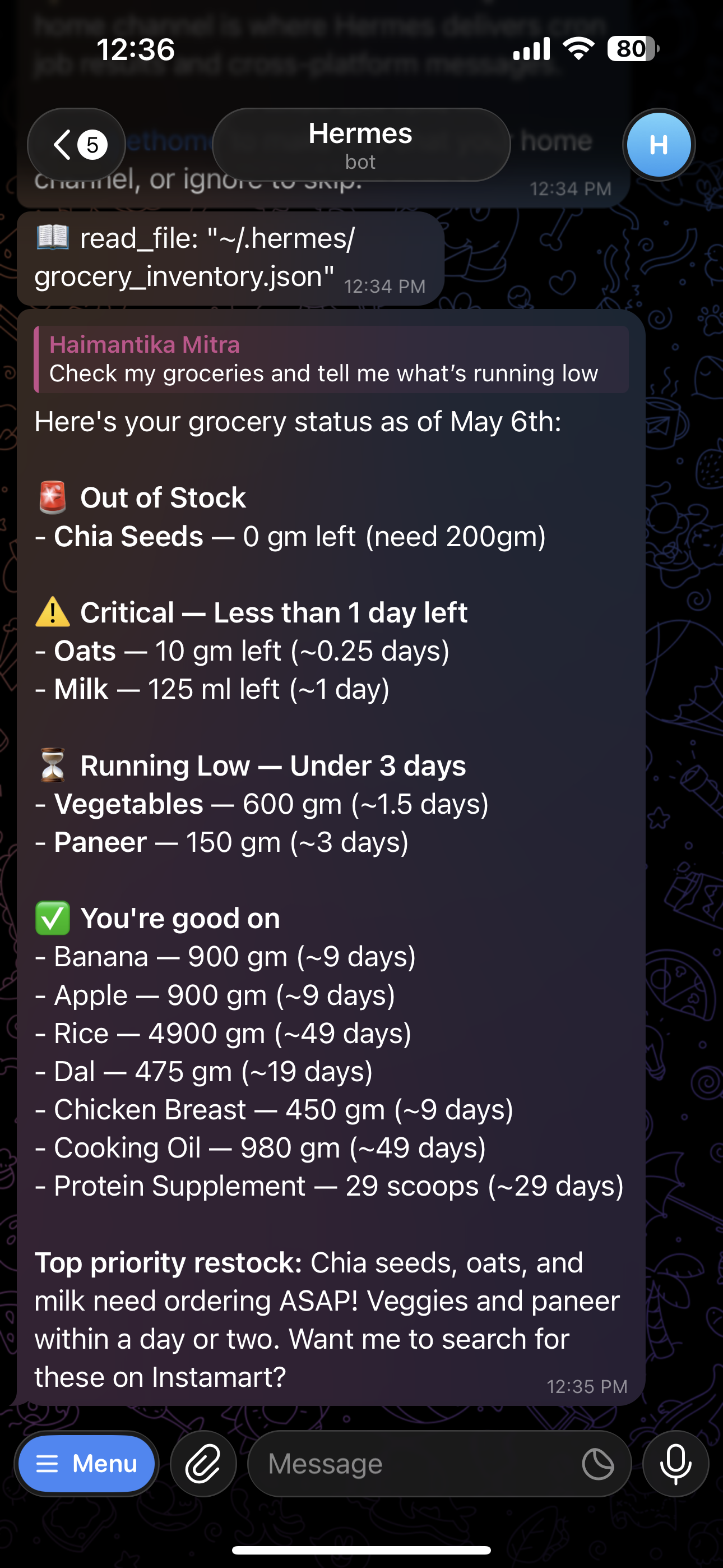
Reply YES. Hermes searches your connected grocery service, builds a cart, and sends a summary.
Once everything is set up, you can manage your agent entirely from Telegram:
| Message | What Hermes does |
|---|---|
Check my groceries |
Shows all items and days of stock remaining |
I bought 12 eggs |
Updates egg stock in the inventory file |
Order groceries now |
Skips the check and goes straight to ordering |
What's running low? |
Lists items near their alert threshold |
SKIP |
Snoozes today’s alert until tomorrow |
FAQ
What is Hermes Agent?
Hermes Agent is an open-source AI agent from Nous Research. You run it on your own machine or cloud server, connect messaging platforms like Telegram, and extend it with skills and MCP tools. See the Hermes documentation.
Can you run Hermes Agent on a VPS?
Yes. A Linux VPS such as a DigitalOcean Droplet on Ubuntu 24.04 with at least 2 vCPUs and 4 GB RAM is enough for this tutorial. You SSH in, run the install script, then configure the gateway and MCP.
What is Model Context Protocol (MCP)?
MCP is an open standard for connecting AI agents to external tools and APIs in a structured way. Hermes loads MCP servers from its config so the agent can call vendor-specific actions (for example grocery search) without custom glue code for each API. Read more at modelcontextprotocol.io.
How do you connect Hermes to Telegram?
Run hermes gateway setup, choose Telegram, and follow BotFather steps in the terminal. Then start the gateway and, for production, enable it as a system service so it keeps running. Message your bot from the Telegram app to confirm delivery.
Why use an SSH tunnel for MCP login?
On a headless Droplet there is no desktop browser for OAuth. Hermes prints a localhost callback URL. You forward that port over SSH from your laptop, open the URL in your browser, and complete login so tokens are stored on the server.
Conclusion
You now have a self-hosted AI agent running on DigitalOcean that works for you around the clock. Hermes connects to Telegram and more messaging platforms so you can reach it from anywhere, and skills plus MCP servers let you extend it to handle almost anything.
The grocery automation you built in this tutorial is a starting point. The pattern is reusable: write a skill file that describes the task, connect an MCP server that gives Hermes access to the right service, and set a cron job to trigger it automatically. The grocery automation is one example. The same pattern works for any repetitive task in your life. A few ideas to get you started:
Bill reminders- Create a skill that tracks recurring payments, calculates due dates, and alerts you three days before each bill is due.
Health tracking- Log your workouts or meals via Telegram and have Hermes summarize your week every Sunday.
Home automation- Connect Hermes to a smart home MCP server and have it adjust lights, thermostats, or appliances based on a schedule or your location.
Related Links
Thanks for learning with the DigitalOcean Community. Check out our offerings for compute, storage, networking, and managed databases.
About the author(s)

A Developer Advocate by profession. I like to build with Cloud, GenAI and can build beautiful websites using JavaScript.

I help Businesses scale with AI x SEO x (authentic) Content that revives traffic and keeps leads flowing | 3,000,000+ Average monthly readers on Medium | Sr Technical Writer(Team Lead) @ DigitalOcean | Ex-Cloud Consultant @ AMEX | Ex-Site Reliability Engineer(DevOps)@Nutanix
Still looking for an answer?
This textbox defaults to using Markdown to format your answer.
You can type !ref in this text area to quickly search our full set of tutorials, documentation & marketplace offerings and insert the link!
 This work is licensed under a Creative Commons Attribution-NonCommercial- ShareAlike 4.0 International License.
Become a contributor for community
Get paid to write technical tutorials and select a tech-focused charity to receive a matching donation.

DigitalOcean Documentation
Full documentation for every DigitalOcean product.

Resources for startups and AI-native businesses
The Wave has everything you need to know about building a business, from raising funding to marketing your product.
The developer cloud
Scale up as you grow — whether you're running one virtual machine or ten thousand.

Start building today
From GPU-powered inference and Kubernetes to managed databases and storage, get everything you need to build, scale, and deploy intelligent applications.
